
Set Up Premium Advertising
ShowMeLocal Premium advertising helps increase your business’s visibility across the ShowMeLocal directory.
General ads are generated and placed automatically. You can improve their targeting by managing your geographic areas and keywords. You can also customize the call-only ad displayed on mobile competitor listings.
Premium advertising uses a flat monthly rate. There are no per-click charges.
Open the Advertising dashboard
- Log in to ShowMeLocal.
- If you manage multiple businesses, select the business whose advertising you want to manage.
- Click Manage Ads in the Premium Products section.
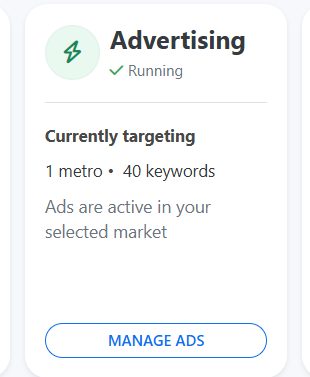
- Open Advertising.
The Advertising dashboard shows:
- Whether your ads are running
- Your current advertising package
- Visits during the current month
- The number of targeted geographic areas
- The number of targeted keywords
- Links to Geo Targeting, Keywords, and Ad Setup
Where are Premium ads displayed?
ShowMeLocal automatically generates and places ads across several areas of the directory.
City pages
Your business can appear in Premium positions on relevant city pages.
The position and frequency depend on your package. Ads rotate through different positions to increase visibility and reach.
Search results
Ads can appear on desktop and mobile search-result pages.
Search advertising is matched using your selected keywords and geographic targeting. A search page can display up to three advertising positions. When more advertisers match the same search, ads rotate through the available positions.
Competitor business listings
Your ad can appear prominently on the listings of businesses in matching categories.
These ads rotate with other eligible advertisers and are automatically generated from your business information.
Mobile call-only advertising
A call-only ad can appear at the top of matching competitor listings on mobile devices.
This ad is designed to encourage potential customers to call your business directly. Unlike general ads, the call-only ad can be customized from the Ad Setup section.
Manage geographic targeting
Geographic targeting controls the locations where your advertising is eligible to appear.
- Open Geo Targeting from the Advertising dashboard.
- Review your currently selected geographic areas.
- Click Add Geo Area.
- Search for a city, county, or metro area.
- Select the appropriate location from the search results.
The available geographic reach depends on your Premium package:
- Basic: City targeting
- Deluxe: City, county, metro-area, and state targeting
- Platinum: City, county, metro-area, state, and national targeting
Only the geographic options included with your package will be available.
Metro-area targeting
Selecting a metro area automatically includes all cities within that metro area.
If you select both a metro area and an individual city inside that metro, the separate city selection is ignored because the city is already included in the metro area.
Review your selected locations and make sure they represent the areas your business serves.
Manage advertising keywords
Keywords help determine which searches are relevant to your business.
Review current keywords
- Open Keywords from the Advertising dashboard.
- Use the Current Keywords tab to review your active keywords.
- Use the keyword search box to find a specific keyword.
- Select Live Preview next to a keyword to view the corresponding ShowMeLocal search.
The checkbox next to each keyword indicates whether it is active.
Add or update keywords
- Click Add Keywords or open the Manage Keywords tab.
- Enter keywords that describe your business, products, and services.
- Separate each keyword or phrase with a comma.
- Click Update to save the keyword list.
Example:
main service, related service, product category, specialty service
The page displays how many characters remain while you edit the list. Common words and punctuation are excluded when the keywords are processed.
Use specific, relevant phrases. Avoid adding unrelated terms simply to make the list larger.
Customize the call-only ad
General ShowMeLocal ads are generated automatically and do not require manual setup.
The Ad Setup section allows you to control the call-only ad that appears at the top of competitor listings on mobile devices.
- Open Ad Setup from the Advertising dashboard.
-
Use the Live setting to control whether the call-only ad is active.
Select the ad type:
- Generic ad
-
Non-generic ad
Select the targeting style:
- Off-site service provider
- On-site service provider
- Enter optional text in Line 1 and Line 2.
- Review the ad preview.
- Click Save.
Generic and non-generic ads
A non-generic ad includes the advertiser’s name and provides more precise targeting. It may generate slightly less overall activity, but the engagement can be more relevant.
Use the preview to confirm how the selected ad type will appear to customers.
On-site service providers
The on-site service provider option displays the business location where the service is provided. This helps customers understand that the service is available at a specific location.
Dynamic targeting text
You can use these placeholders in the optional advertising text:
- {category} inserts the applicable business category.
- {city} inserts the applicable city.
These placeholders allow the advertising text to adapt to the category or location being targeted.
Confirm that advertising is active
Return to the main Advertising tab after completing your setup.
The dashboard should show:
- Ads are running
- Your current geographic-targeting count
- Your current keyword count
- Your advertising package
- Visits recorded during the current month
You can return to Geo Targeting, Keywords, or Ad Setup at any time to review or update your advertising configuration.